How to Reverse a Voice Memo on iPhone
Apple's Voice Memos app has no reverse option. To play a voice memo backwards, share the memo into the free SupaFlip app (or import it from Files) and it's reversed in one tap.
What Voice Memos can and can't do
Voice Memos records, trims, enhances, and organizes — but it has no playback-direction control, no speed control below 1x for editing tricks, and no effects. If you need a memo played backwards (for a puzzle, a project, or plain curiosity), you need to hand the file to an app built for reversal.
Reverse a voice memo in 3 steps
- Share the memo. In Voice Memos, tap your recording → Share. Choose SupaFlip directly, or save to Files first.
- Import into SupaFlip. The shared memo opens in Decode Mode; if you saved it to Files, open Decode Mode and pick the file.
- Play it backwards. The memo is reversed instantly. Add voice effects, change speed 0.25x–2x, and share or save the result.
Things people reverse voice memos for
- Puzzles and scavenger hunts — hide the next clue in a backwards memo; players decode it to continue.
- Music ideas — songwriters flip hummed melodies to find reversed hooks (see playing music backwards).
- Classroom fun — phonetics demos: hear how speech really sounds mirrored.
- Old recordings — that "weird noise" in a memo is sometimes obvious once reversed.
Does it change my original memo?
No. SupaFlip works on a copy — your original stays untouched in Voice Memos. Reversed versions can be saved as new files or shared directly.
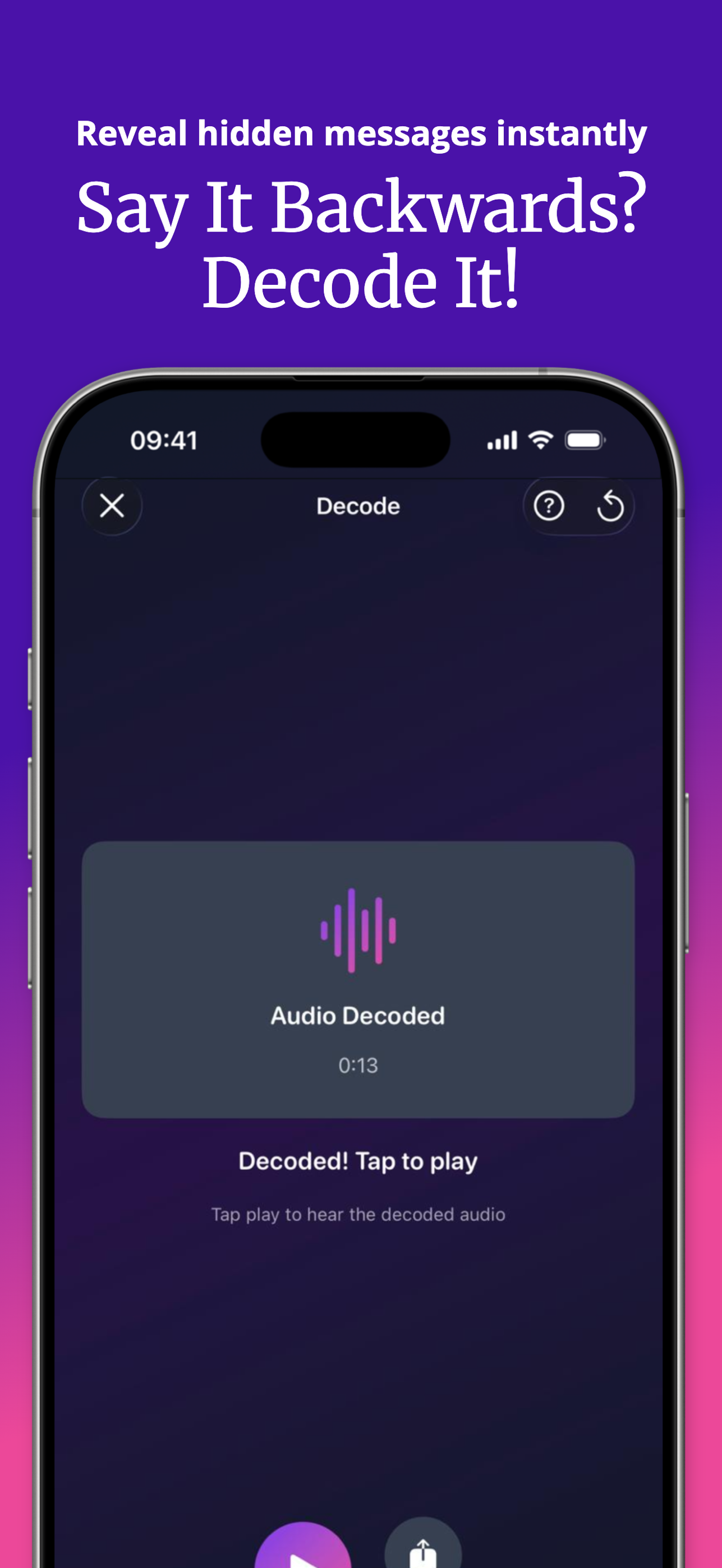
Try it yourself — SupaFlip is 100% free with everything unlocked.
Download on theApp StoreFrequently asked questions
Can the iPhone Voice Memos app reverse audio?
No. Voice Memos records and trims but cannot play recordings backwards. You need an app like SupaFlip to reverse the file.
How do I get a voice memo into SupaFlip?
Tap Share on the memo and choose SupaFlip, or save it to Files and import it from Decode Mode.
Will reversing modify my original memo?
No — SupaFlip reverses a copy. The original recording stays intact in Voice Memos.