How to Reverse Audio on iPhone (Free, in Seconds)
To reverse audio on iPhone, download the free SupaFlip app, open Audio Mode, tap to record, and tap again — your recording plays backwards instantly. No computer, no desktop editor, no subscription.
Why you can't reverse audio with built-in iPhone apps
iOS has no native way to play a recording backwards. Voice Memos only records and trims, and GarageBand can technically reverse a region, but it takes a project, a track, and several menus to get there. If you just want to hear your voice flipped — for a prank, a challenge, or a hidden message — you want a one-tap tool.
Reverse audio in 3 steps with SupaFlip
- Get the app. Download Reverse Audio - SupaFlip® free from the App Store — everything is unlocked, no subscription.
- Record. Open Audio Mode and tap the microphone button. Speak, sing, or make any sound for up to 5 minutes. Tap again to stop.
- Reverse & share. Your clip is flipped automatically — tap Reversed to hear it backwards. Toggle back to Original anytime, then share the file or save it to Files.
Make your reversed audio even funnier
- Voice effects: layer one of 11 effects — Chipmunk, Demon, Robot, Echo, Alien and more — on top of the reversed playback.
- Speed control: slow it to 0.25x to catch every backwards syllable, or crank it to 2x for chipmunk chaos.
- Send it as a puzzle: friends with SupaFlip can use Decode Mode to un-reverse your message and find out what you actually said.
What can you do with reversed audio?
Reversed audio is the engine behind the Reverse Singing Challenge, backwards secret messages, spooky sound design, and the classic "can you say this backwards?" party game. It's also a surprisingly good ear-training exercise if you're learning to talk backwards.
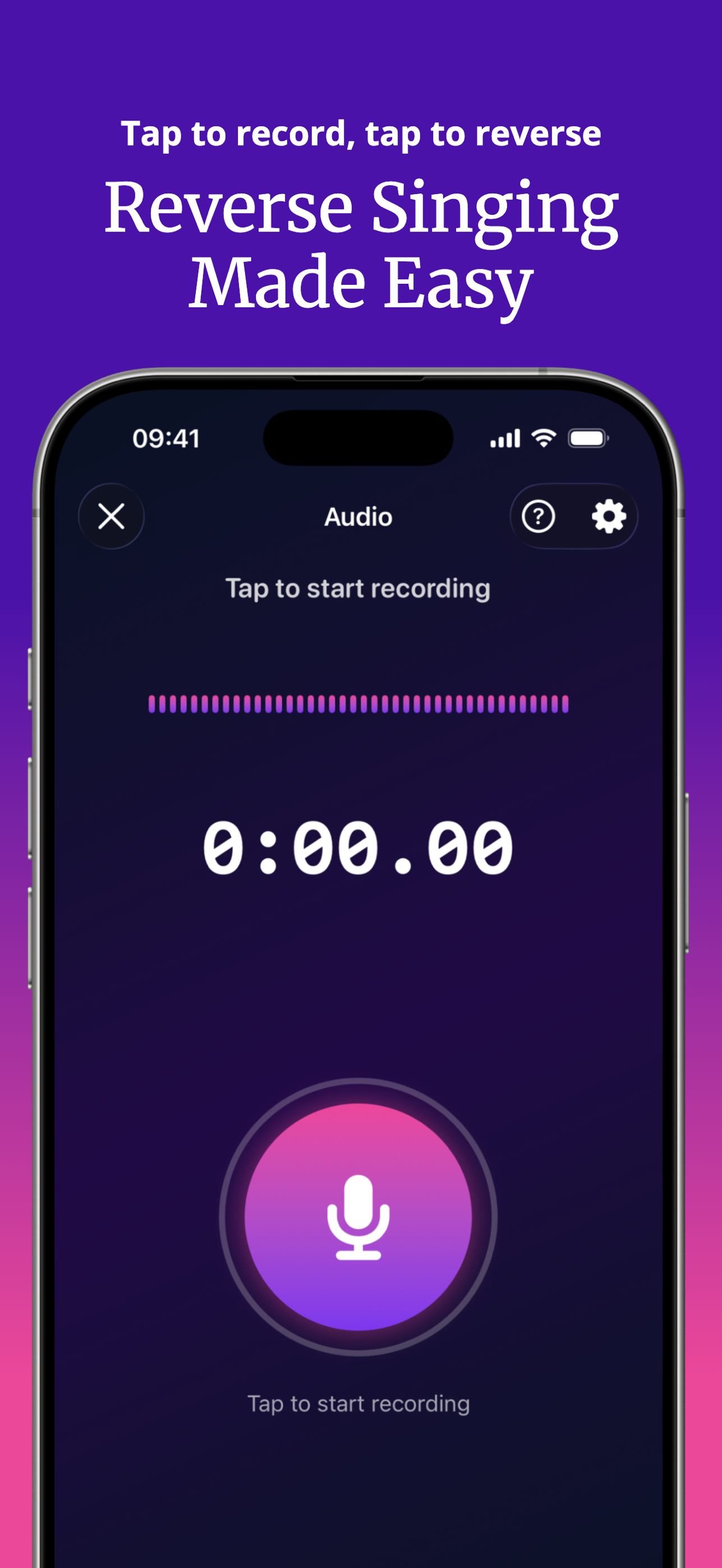
Try it yourself — SupaFlip is 100% free with everything unlocked.
Download on theApp Store