How to Reverse a Video With Sound on iPhone
To reverse a video with its sound on iPhone, use SupaFlip's Video Mode: record or capture a clip and it's flipped end-to-front including the audio track — something most reverse-video editors silently drop. Free, with HD export.
The problem: reversed video, missing audio
Search "reverse video" and you'll find plenty of editors — but try them and you'll notice the reversed clip comes out muted, or with the original (forward) audio awkwardly pasted on top. For reverse-speech videos, backwards singing clips, and rewind effects, the flipped audio is the joke. You need both tracks reversed together.
Reverse video with audio in 3 steps
- Open Video Mode in SupaFlip and record up to 3 minutes of video with sound.
- Let it flip. The whole clip — frames and audio — is reversed in one pass. Preview instantly.
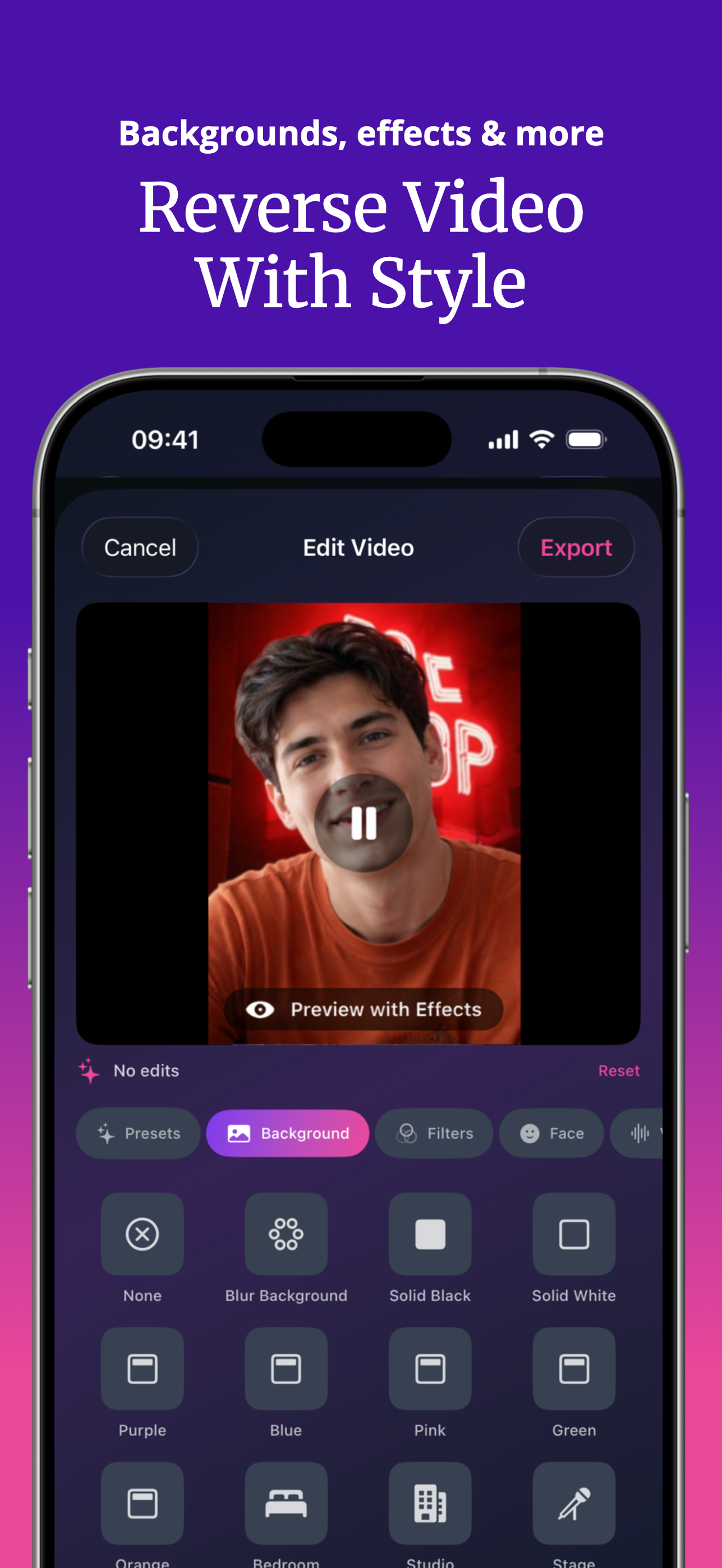
- Style and export. Add one-tap presets, custom backgrounds (blur, solid colors, bedroom, studio, stage), face filters like Big Mouth, Alien and Fish Eye, stickers, emoji and text — then export in HD and share anywhere.
Ideas for reversed videos with sound
- Rewind effects: jump out of the pool, un-spill the drink, un-blow the candles — with the audio whooshing backwards for full effect.
- Backwards singing videos: film your Reverse Singing Challenge attempts instead of just recording audio.
- Voice-effect mashups: apply Demon or Chipmunk to the reversed audio track for maximum weirdness.
- Hidden video messages: say something backwards on camera; friends decode the video in SupaFlip to reveal it.
Does it work with existing videos?
Yes — use Decode Mode to import a video from Photos or Files and reverse it. That's also how you un-reverse a clip someone sent you.
Try it yourself — SupaFlip is 100% free with everything unlocked.
Download on theApp Store